【期間限定無料】VRChatter向けBOOTH拡張機能_一括ダウンローダー_chrome拡張機能_BOOTH Bulk Downloader【ENGLISH・한국어・中文】
- ダウンロード商品¥ 0無料ダウンロードbooth_bulk_downloader_v2.0.22.zip(72.3 KB)booth_bulk_downloader_v2.0.22.zip
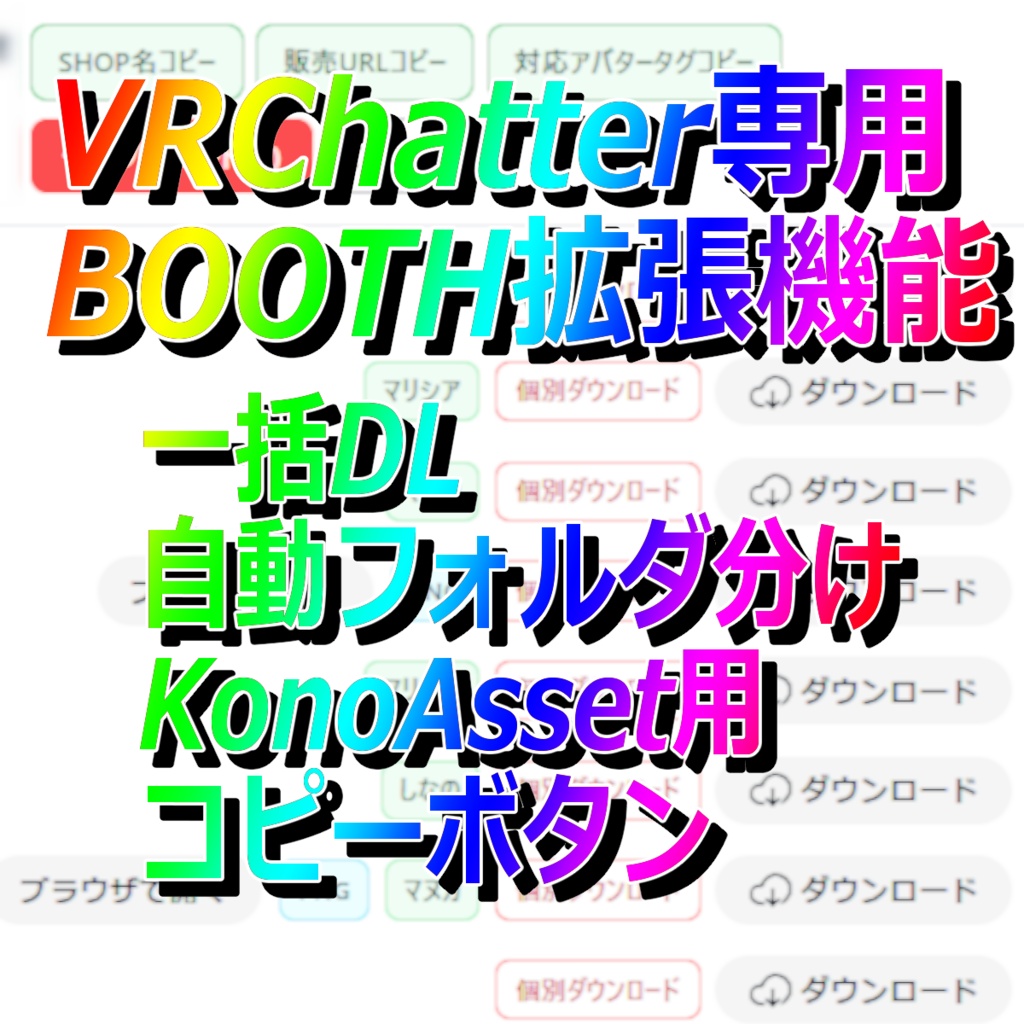
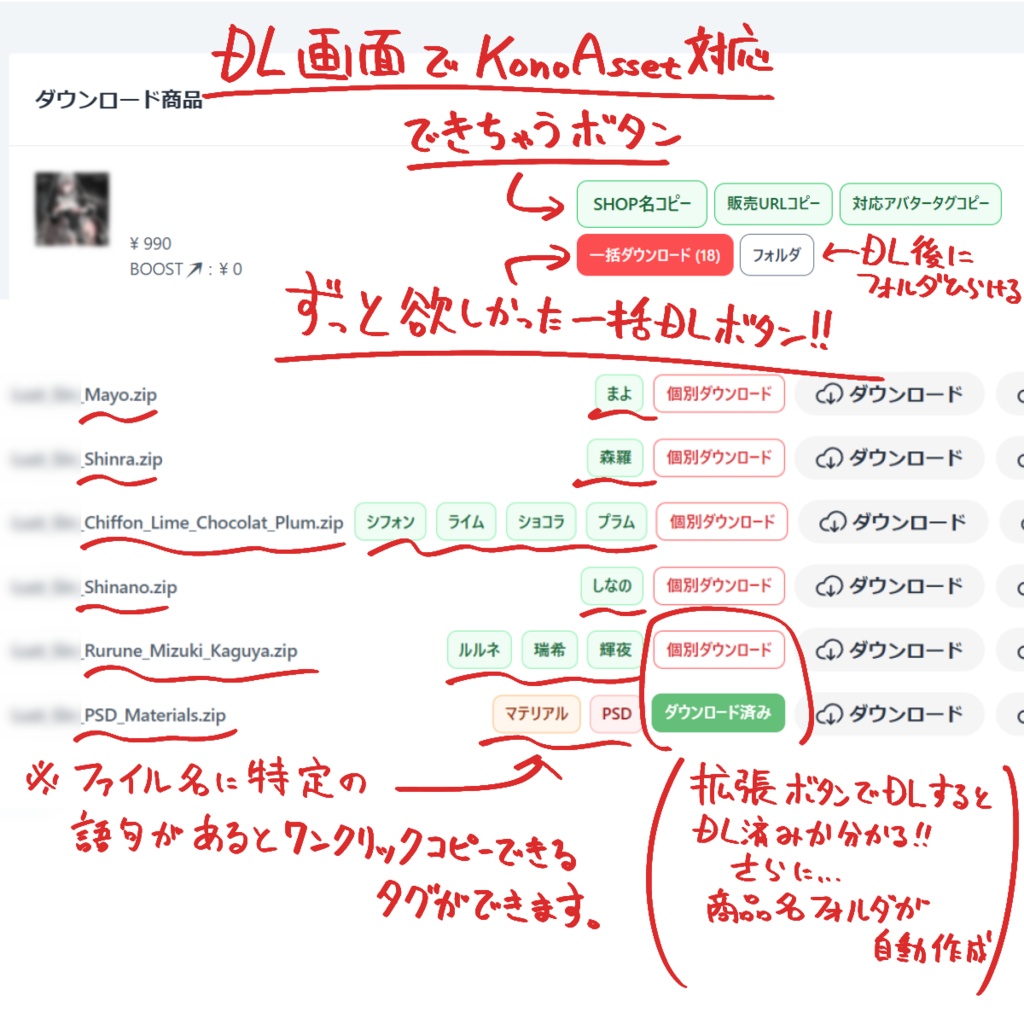
【v2.0.22 アップデート情報】 - BOOTH以外のサイトや他の拡張機能によるダウンロードへ干渉しないよう改善 - BOOTH由来と確認できたダウンロードのみ「BOOTH」フォルダへ振り分けるよう安全性を強化 【v2.0.21 アップデート情報】 - 一部の商品ページで「SHOP名コピー」が正しく取得できない問題を修正 - 商品ページ上部の正式なSHOP情報を優先して取得するよう改善 VRChatter向けBOOTH拡張機能_一括ダウンローダー_chrome拡張機能 BOOTH Bulk Downloader BOOTH Bulk Downloader は、BOOTHの購入済み商品ページや無料商品ページで、ファイルの個別ダウンロード・商品ごとの一括ダウンロードを補助するChrome拡張機能です。 VRChat向けアバター・衣装・テクスチャ・ツールなど、複数ファイルが含まれるBOOTH商品を整理して保存したい場合に使いやすいよう、ダウンロード補助ボタン、タグ表示、コピー機能、フォルダ表示機能をまとめています。 対応アバター名の確認や、KonoAssetへ登録する際の情報コピーにも使いやすい構成にしています。 【主な機能】 ・商品ごとの一括ダウンロード ・ファイルごとの個別ダウンロード ・ダウンロード済み表示 ・保存先を BOOTH/商品名/ に整理 ・SHOP名コピー ・販売URLコピー ・対応アバタータグコピー ・PSD / PNG / マテリアル / テクスチャ / MochiFitter などのタグ表示 ・表示タグのクリックコピー ・フォルダ表示ボタン ・日本語 / 英語 / 韓国語 / 簡体中文 / 繁體中文 表示対応 【KonoAsset向けコピー機能】 KonoAssetへ商品情報を登録・整理しやすいように、商品ごとに以下のコピー機能を用意しています。 SHOP名コピー: 商品のSHOP名をコピーします。 販売URLコピー: 商品の販売ページURLをコピーします。 対応アバタータグコピー: 表示されているアバター名タグのみを改行区切りでコピーします。 これらのコピー内容は、KonoAssetの商品情報登録や整理時にそのまま貼り付けやすい形式です。 コピー成功後は、ボタン表示が数秒間「コピー済み」に変わります。 【保存先について】 ダウンロードしたファイルは、Chromeの既定ダウンロードフォルダ配下に以下の形式で保存されます。 Downloads/BOOTH/商品名/ファイル名 商品名にWindowsでフォルダ名として使用できない文字が含まれる場合、保存用フォルダ名では自動的に削除されます。 削除対象文字: \ / : * ? " < > | 【対応アバタータグ表示】 ファイル名に含まれるアバター名を検出し、個別ダウンロードボタンの近くにタグとして表示します。 アバタータグをクリックすると、その行に表示されているアバター名を改行区切りでコピーできます。 商品ごとの「対応アバタータグコピー」ボタンでは、商品内に表示されているアバター名タグのみをまとめてコピーできます。 PSD、PNG、マテリアル、テクスチャなどの補助タグはクリックでコピーできますが、「対応アバタータグコピー」には含まれません。 【ボタン説明】 SHOP名コピー: 商品のSHOP名をコピーします。 販売URLコピー: 商品の販売ページURLをコピーします。 対応アバタータグコピー: 表示されているアバター名タグのみを改行区切りでコピーします。 一括ダウンロード: その商品の未ダウンロードファイルを順番にダウンロードします。 フォルダ: Chromeのダウンロード履歴から、対象商品の保存済みファイルをWindows Explorerで表示します。 個別ダウンロード / ダウンロード: 対象ファイルを個別にダウンロードします。 【対応ページ】 ・BOOTH購入済み商品のダウンロードページ ・BOOTH販売ページの無料ダウンロード欄 ・booth.pm/ja/items/... ・booth.pm/en/items/... ・booth.pm/ko/items/... ・booth.pm/zh-cn/items/... ・booth.pm/zh-tw/items/... ・<shop>.booth.pm/items/... 【インストール方法】 1. ZIPファイルをダウンロードして展開します。 2. Chromeで chrome://extensions/ を開きます。 3. 右上の「デベロッパーモード」を有効にします。 4. 「パッケージ化されていない拡張機能を読み込む」を押します。 5. 展開したフォルダを選択します。 6. BOOTHの購入済み商品ページまたは無料商品ページを開きます。 【注意事項】 ・本拡張機能はBOOTH非公式ツールです。 ・BOOTH、pixiv、各SHOP、各クリエイターとは関係ありません。 ・KonoAsset公式の拡張機能ではありません。 ・Chromeのダウンロード履歴を削除している場合、ダウンロード済み判定やフォルダ表示ができない場合があります。 ・ファイルを手動で移動・削除した場合、未ダウンロード状態に戻る場合があります。 ・商品ファイルの利用範囲、改変、再配布、商用利用などは、各商品・各SHOPの利用規約に従ってください。 【利用規約】 利用前に同梱の TERMS.jp.md を確認してください。 【プライバシー】 本拡張機能は外部サーバーへデータを送信しません。 設定情報やダウンロード済み状態は、Chromeのローカルストレージに保存されます。
BOOTH Extension for VRChatters_Bulk Downloader_Chrome Extension BOOTH Bulk Downloader BOOTH Bulk Downloader is a Chrome extension that helps you download files individually or download all files for each product from BOOTH purchased item pages and free item pages. It is designed to make it easier to organize and save BOOTH products that include multiple files, such as VRChat avatars, outfits, textures, and tools. It includes download assist buttons, tag display, copy functions, and a folder display function. It is also structured to make it easy to check supported avatar names and copy information when registering items in KonoAsset. [Main Features] - Bulk download by product - Individual download by file - Downloaded status display - Organizes save destinations as BOOTH/Product Name/ - Copy shop name - Copy sales URL - Copy supported avatar tags - Tag display for PSD / PNG / materials / textures / MochiFitter, etc. - Click-to-copy displayed tags - Folder display button - Display support for Japanese / English / Korean / Simplified Chinese / Traditional Chinese [Copy Functions for KonoAsset] To make it easier to register and organize product information in KonoAsset, the following copy functions are provided for each product. Copy Shop Name: Copies the product’s shop name. Copy Sales URL: Copies the product’s sales page URL. Copy Supported Avatar Tags: Copies only the displayed avatar name tags, separated by line breaks. These copied contents are formatted so they can be pasted directly when registering or organizing product information in KonoAsset. After copying succeeds, the button label changes to “Copied” for a few seconds. [About Save Destinations] Downloaded files are saved under Chrome’s default download folder in the following format: Downloads/BOOTH/Product Name/File Name If the product name contains characters that cannot be used in Windows folder names, they are automatically removed from the folder name used for saving. Characters to be removed: \ / : * ? " < > | [Supported Avatar Tag Display] Avatar names included in file names are detected and displayed as tags near the individual download button. Clicking an avatar tag copies the avatar names displayed on that row, separated by line breaks. The “Copy Supported Avatar Tags” button for each product copies only the avatar name tags displayed within that product. Auxiliary tags such as PSD, PNG, materials, and textures can be copied by clicking them, but they are not included in “Copy Supported Avatar Tags.” [Button Descriptions] Copy Shop Name: Copies the product’s shop name. Copy Sales URL: Copies the product’s sales page URL. Copy Supported Avatar Tags: Copies only the displayed avatar name tags, separated by line breaks. Bulk Download: Downloads the product’s undownloaded files in order. Folder: Displays the saved files for the target product in Windows Explorer from Chrome’s download history. Individual Download / Download: Downloads the target file individually. [Supported Pages] - BOOTH purchased item download pages - Free download sections on BOOTH sales pages - booth.pm/ja/items/... - booth.pm/en/items/... - booth.pm/ko/items/... - booth.pm/zh-cn/items/... - booth.pm/zh-tw/items/... - <shop>.booth.pm/items/... [Installation] 1. Download and extract the ZIP file. 2. Open chrome://extensions/ in Chrome. 3. Enable “Developer mode” in the upper-right corner. 4. Click “Load unpacked.” 5. Select the extracted folder. 6. Open a BOOTH purchased item page or free item page. [Notes] - This extension is an unofficial tool for BOOTH. - It is not affiliated with BOOTH, pixiv, any shops, or any creators. - It is not an official KonoAsset extension. - If Chrome’s download history has been deleted, downloaded status detection and folder display may not work. - If files are moved or deleted manually, they may return to an undownloaded state. - Please follow the terms of use of each product and each shop regarding file usage scope, modification, redistribution, commercial use, and similar matters. [Terms of Use] Please check the included TERMS.jp.md before use. [Privacy] This extension does not send data to external servers. Settings and downloaded status are stored in Chrome’s local storage.